Soft20 Backup
Encrypted backups. Your files. Your repository.
A free backup utility for Linux. Protect your files with encrypted, incremental snapshots and easy restoration. Soft20 Backup is developed by Soft20 and is separate from third-party software listings in our catalog.
Ubuntu 22.04 LTS · x86_64 · DEB
57db78791c2b11a2d4fd396cfba796f75895068f4e7916edf26a8cac4761bbb9Verify the downloaded file with the matching manifest:
sha256sum --check soft20-backup_1.0.0_amd64.deb.sha256What you can do
- Encrypted backupsProtect repository contents with encryption.
- Incremental snapshotsSave successive versions efficiently.
- SchedulingRun saved jobs daily or on selected weekdays.
- RestorationBrowse snapshots and restore files to a new empty folder.
- Backup historyReview prior snapshots and job activity.
- Quick CheckRun a quick repository metadata check.
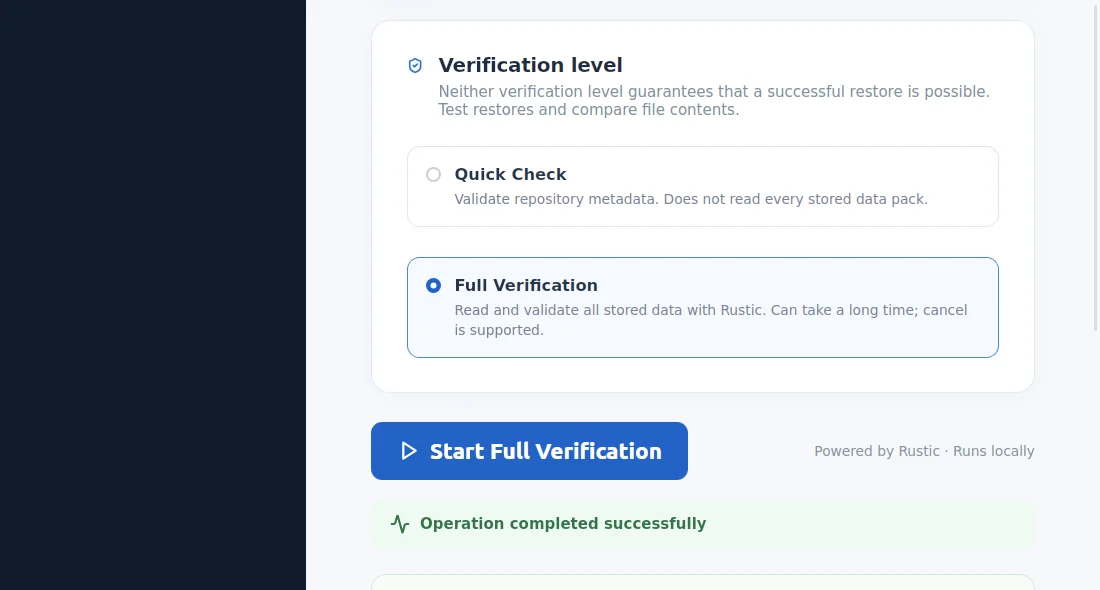
- Full VerificationRead and verify repository data.
System requirements
- Ubuntu 22.04 LTS, 64-bit x86_64.
- GTK 3 and WebKitGTK 4.1 runtime libraries; package installation resolves these through apt.
- A writable local or mounted repository destination with sufficient storage.
Install
- Download the DEB package using the download button above.
- From the download folder, run
sudo apt install ./soft20-backup_1.0.0_amd64.deb. - Open Soft20 Backup from the application menu, create an encrypted repository and keep its password separately.
- Select files and folders, then run your first backup.
Background scheduling
Scheduled jobs run in your user session and retrieve saved credentials through Secret Service. Linux scheduled backups require an active DBus session and an unlocked Secret Service keyring (such as GNOME Keyring or KWallet). systemd lingering alone does not unlock credentials.
Restore and disaster recovery
- Keep a separate copy of your repository password; Soft20 Backup cannot recover a lost password.
- Open the repository and select the snapshot you need.
- Restore to a new, empty destination folder, then compare recovered files with the originals.
- Keep a copy of the repository on storage separate from the source device where possible.
Full Verification checks repository data but does not prove that a particular file can be recovered. Periodically perform a test restore.
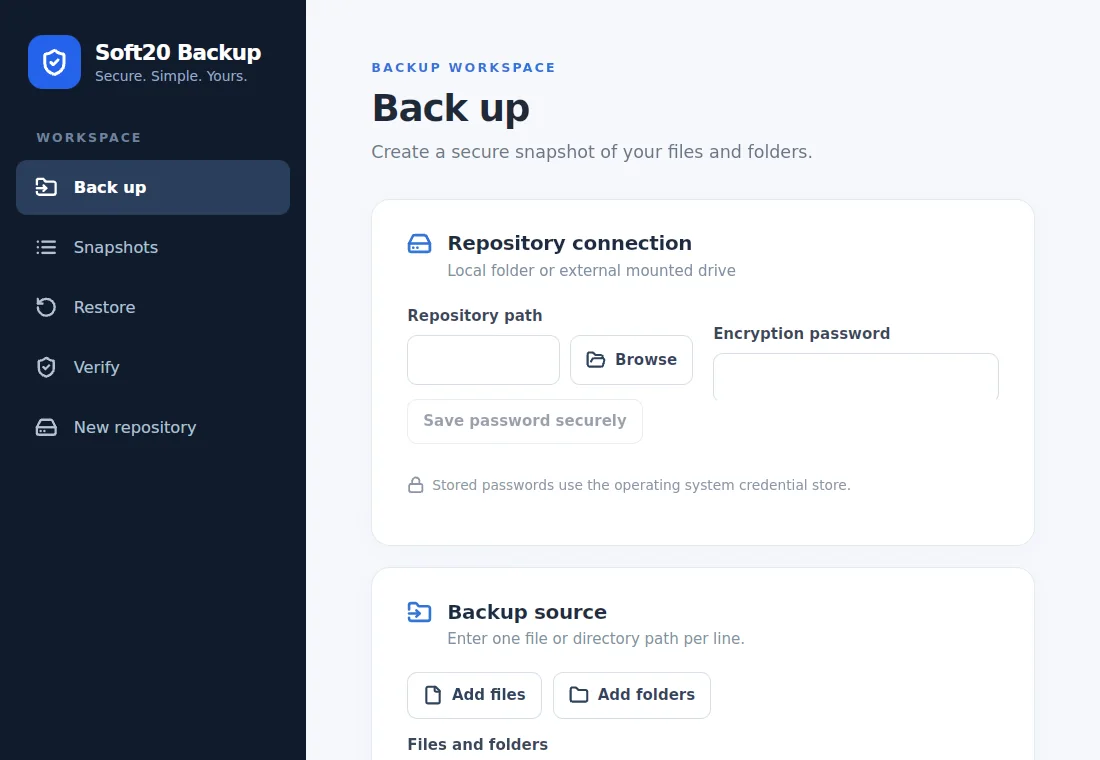
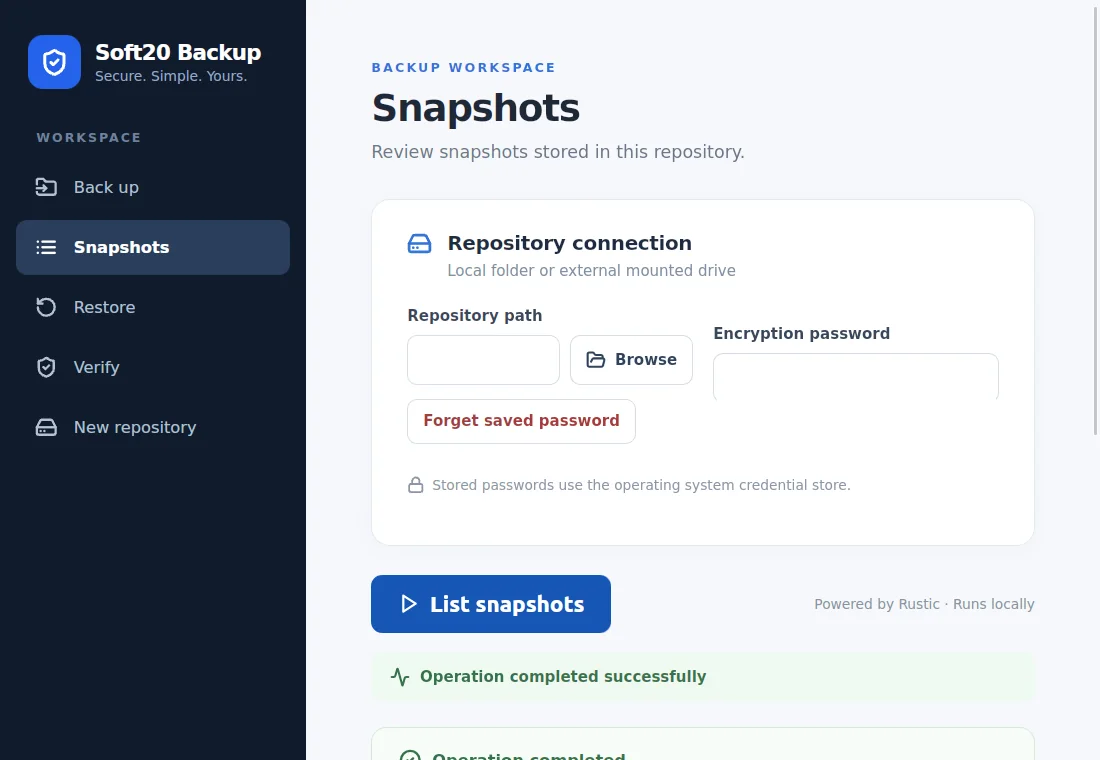
Application screenshots
Captured during Soft20 Backup desktop testing on Ubuntu 22.04. Local repository paths and credential fields are blanked for privacy. Select a screenshot to view it at full size.